Guide
Animated travel map for Instagram Reels
By the MAPROUTE team · Updated
In short
Set the editor to 9:16 (1080 × 1920), keep the video to 15–30 seconds with Video length, use the Follow camera so the vehicle stays in the middle of the tall frame, and export an MP4 at 30 fps. Then send the file to your phone and post it as a Reel, adding text and sound in Instagram if you like.Set up for a vertical video
- Open the editor and click 9:16 in the top bar. The export is 1080 × 1920, the size Reels, TikTok and Shorts use.
- Add your stops. Fewer, well-chosen stops read better on a phone: three to eight is a good range for a Reel.
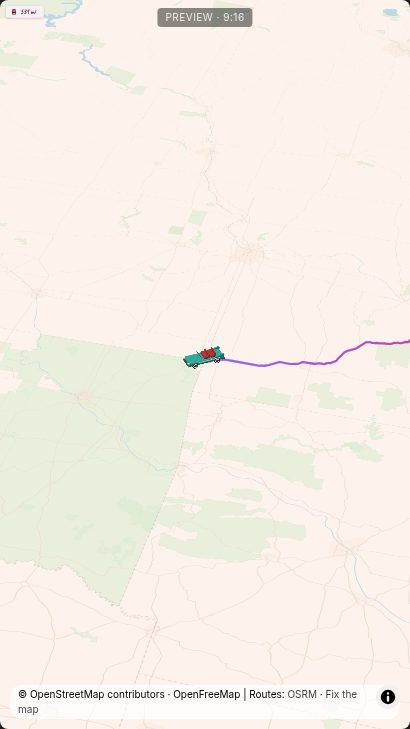
- Under Camera & globe, choose Follow: the camera tracks the vehicle, which suits a tall, narrow frame. 3D tilt works well too.
Leave room for Instagram's buttons
Instagram lays your caption and its buttons over the bottom and the right edge of a Reel. Keep what matters in the middle of the frame: the Follow camera does this for you. If you use your own opening or closing text, keep it away from the bottom.
Pacing
- Set Video length to the length you want (15 to 30 seconds is typical for a Reel); the whole route is timed to fit.
- Photos at each stop make a Reel feel personal. One strong photo per stop beats many small ones.
- Under Camera & globe, Start on the whole route opens on the full trip, which works as a hook in the first second.
Music and export
Pick a track under Audio (51 free tracks, all public domain), or export without music and add a trending sound in Instagram. Then click Export, choose MP4, 30 fps, 1080p, and export.
Exporting is free and unlimited with a small "maproute.app" watermark, and needs no account. To remove the watermark, sign in for one free clean export, then use credits (€5 for 3) or Pro (€12 a month or €59 a year). Prices include VAT where it applies.
Getting the video onto your phone
- On a computer: AirDrop it to an iPhone, or save it to Google Drive, iCloud or Dropbox and open it on your phone.
- On a phone: the export downloads to your phone, ready to post.