Guide
How to make an animated travel map video
By the MAPROUTE team · Updated
In short
Open the MAPROUTE editor in your browser, add your stops in the order you visited them, choose how you travelled between each pair (plane, car, train, bus, boat or on foot), pick a map style, press Play to check it, then export an MP4. A simple trip takes about five minutes, and it's free with a small watermark: no install and no signup.What you need
- A web browser. Chrome or Edge on a computer is fastest; Safari, Firefox and phones work too.
- The places you went, in order (cities, towns, beaches or exact addresses).
- Optional: photos for each stop (up to 12 each) and music. 51 free tracks are built in.
1. Choose the video's shape
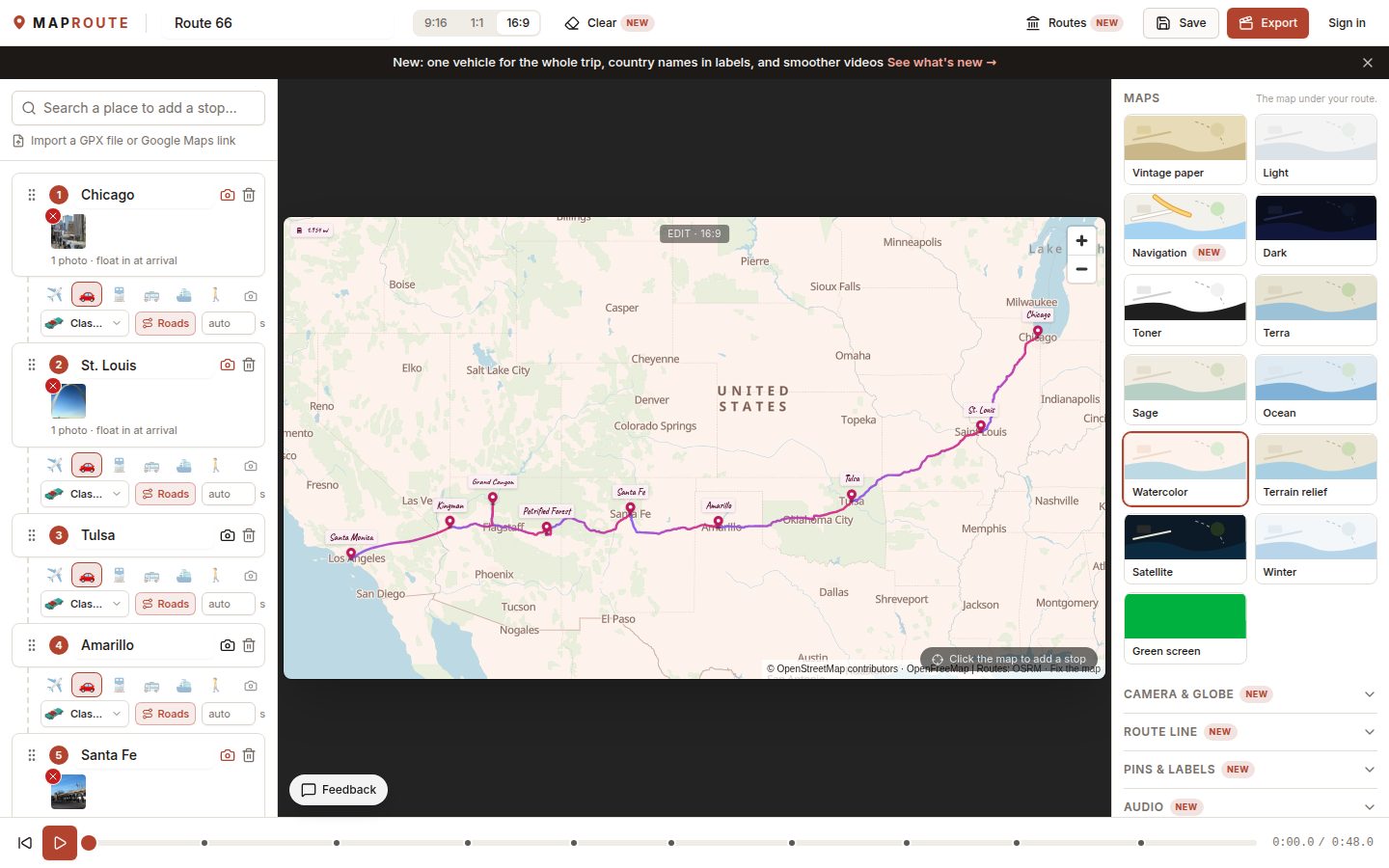
In the bar at the top of the editor, pick 9:16 for Reels, TikTok and Shorts, 1:1 for a square feed post, or 16:9 for YouTube and presentations. You can change it at any time; the map re-frames itself.
2. Add your stops
- Type a place into Search a place to add a stop… and pick it from the list. Repeat for each stop.
- Or click anywhere on the map to drop a stop there; it's named after the place it lands on.
- Drag a stop by its handle (⋮⋮) to change the order.
- Up to 50 stops fit in one video.
In a hurry? Click Routes in the top bar to start from one of 39 famous routes, such as Route 66 or the Camino de Santiago, and change it to your own trip.
3. Say how you travelled
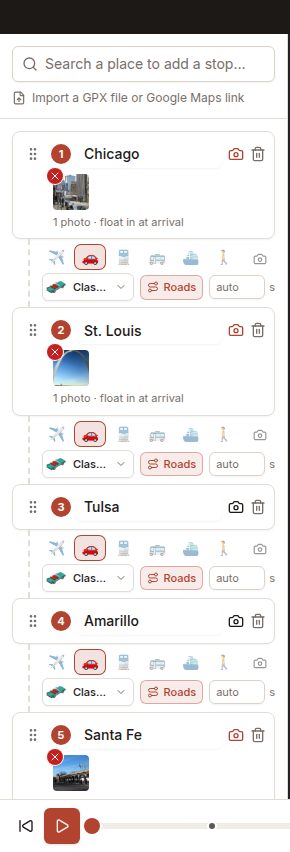
Under each stop there's a row of icons for the leg to the next stop: plane, car, train, bus, boat and on foot. Pick one, then pick the vehicle from the list next to it (an airliner, a classic convertible, a bicycle and so on).
- Roads: car, bus, bike and walking legs follow real roads and trails. Switch it off for a smooth curve instead.
- Seconds: each leg's length is set automatically from the distance, or type your own.
4. Pick the look
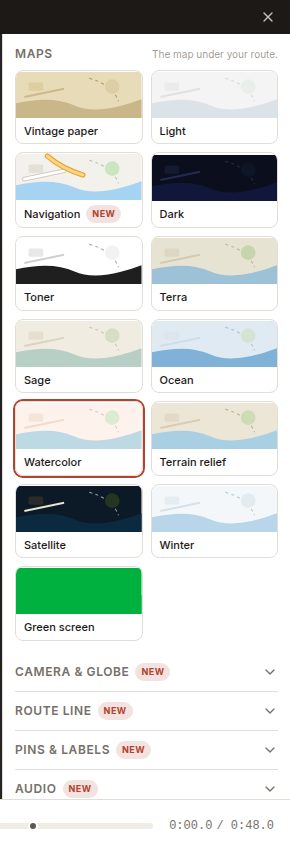
The panel on the right holds everything about the look: Maps (13 map styles, including satellite and 3D terrain), Camera & globe (flat, 3D tilt, follow or street-level, on a flat map or a globe), Route line, Pins & labels, Audio and Video length. Browse the map styles to see them all.
5. Add photos (optional)
Click the camera icon on a stop to add photos or short video clips, up to 12 per stop. They float in when the route reaches that stop; you can add a caption to each.
6. Check it, then export
- Press Play at the bottom, or drag along the timeline to any moment.
- Set Video length if you need an exact length (for example 30 seconds): everything is fitted to it.
- Click Export, choose MP4, 30 or 60 fps and 1080p.
- Click Export with watermark — Free, or sign in for a clean export. The window shows how long it will take on your device; keep the tab open while it works.
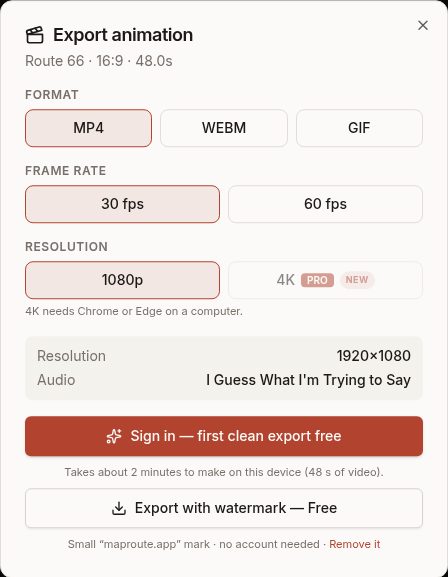
Exporting is free and unlimited with a small "maproute.app" watermark, and needs no account. To remove the watermark, sign in for one free clean export, then use credits (€5 for 3) or Pro (€12 a month or €59 a year). Prices include VAT where it applies.
Example: a long weekend in Portugal
Lisbon → Sintra → Óbidos → Porto, by car. Choose 9:16, add the four places, set each leg to car with Roads on, pick the Vintage paper map and set Video length to 20 seconds. Add one photo per stop. The car follows the real roads between the towns, each town's photo floats in on arrival, and the video ends on the whole route.
If something isn't right
- The export is slow: use Chrome or Edge on a computer, and close other heavy tabs. A long trip at 60 fps has twice the frames of 30 fps.
- A road leg takes a strange path or crosses water: switch Roads off on that leg, or choose a boat or train instead.
- A GIF won't export: GIFs are limited to function(){throw Error("Attempted to call GIF_MAX_SECONDS() from the server but GIF_MAX_SECONDS is on the client. It's not possible to invoke a client function from the server, it can only be rendered as a Component or passed to props of a Client Component.")} seconds and function(){throw Error("Attempted to call GIF_MAX_DIM() from the server but GIF_MAX_DIM is on the client. It's not possible to invoke a client function from the server, it can only be rendered as a Component or passed to props of a Client Component.")} px. Use MP4 for anything longer.
- The map looks empty in the video: check your connection; the map loads as the video is made.
Questions
- Is it really free?
- Exporting is free and unlimited with a small "maproute.app" watermark, and needs no account. To remove the watermark, sign in for one free clean export, then use credits (€5 for 3) or Pro (€12 a month or €59 a year). Prices include VAT where it applies.
- Can I use the video commercially?
- Yes, including in ads. Keep the small OpenStreetMap credit that's on every video showing the map; the map data's licence requires it.