Guide
How to turn a GPX route into a video
By the MAPROUTE team · Updated
In short
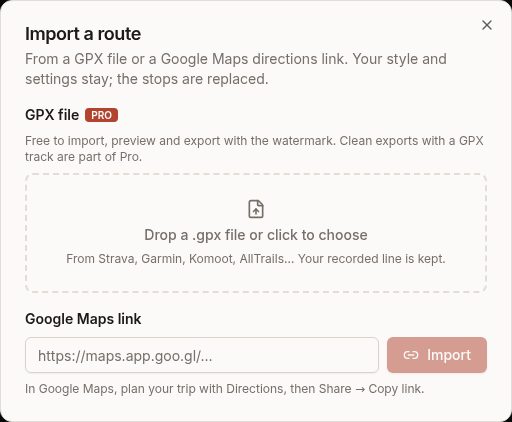
In the editor, click Import a GPX file or Google Maps link, then drop your .gpx file. MAPROUTE keeps the line you recorded, makes stops from the track's start, end and waypoints, and you can style and export it like any route. Importing and exporting with the watermark are free; a clean export with a GPX track is part of Pro.Import the file
- Export a .gpx file from your app (Strava, Garmin Connect, Komoot, AllTrails and most others offer it).
- Open the editor and click Import a GPX file or Google Maps link, under the search box.
- Drop the .gpx file onto the window, or click to choose it. Files up to 30 MB work.
What happens to your track
- The line you recorded is kept, simplified slightly so it plays smoothly.
- Stops are made where the track starts and ends and at its waypoints; the stops are named after the places. A long track gets up to 30 stops this way, and you can add more by hand.
- Your style and settings stay as they were; the stops are replaced.
Or use a Google Maps link
Plan the trip with Directions in Google Maps, then Share → Copy link, and paste the link into the same window. Its stops come in; car legs then follow the roads.
Free and Pro
Importing a GPX file, previewing it and exporting with the watermark are free. A clean (watermark-free) export that uses a GPX track is part of Pro (€12 a month or €59 a year). A Google Maps link is free either way, because its legs follow the roads rather than a recorded track.
If the import doesn't work
- "This file has only one place in it": the file needs at least two points to make a route.
- The file isn't accepted: check it ends in .gpx. Other formats (KML, FIT, TCX) need converting to GPX first.
- No stops from a Google Maps link: copy a Directions link (Directions → Share → Copy link), not a single place.